Search New in 2.5
Search lets you ask questions of your data, like "which days did I sleep less than 6 hours and skip the gym?" or "which days mention 'headache' in the note?"
Opening search
Tap the magnifying glass in the header pill (next to the gear icon). A search panel slides in over the main screen.
The first time you open search, you'll see one empty criterion ready to fill in. Tap + at the bottom to add more.
Building a criterion
Each criterion is three pieces, read left-to-right like a sentence:
Target — operator — value
The available operators depend on the target you pick.
Targets
- Any variable in your list (the menu shows them by name)
- Note — the day's free-form note
- Date — the date itself
Operators
| Target | Operators |
|---|---|
| Number variable | = ≠ > ≥ < ≤ between is set is not set |
| Boolean variable | is yes is no is set is not set |
| Note | contains not contains is empty is not empty matches regex |
| Date | last N days between before after day of week |
Values
The value field changes to match what you've chosen — a number field, a date picker, a weekday selector, a text box, or a pair of fields for between. For example, if you set the Target to "Date", the Value would be any calendar date. If you set the Target to Note, the Value would be a string of text you want to search for.
Combining criteria with AND / OR
When you have two or more criteria, a small AND / OR pill appears between them. Tap it to switch.
- AND — all criteria must be true (the strict reading).
- OR — any criterion can be true (the loose reading).
Results
Search runs as you type — there's no submit button.
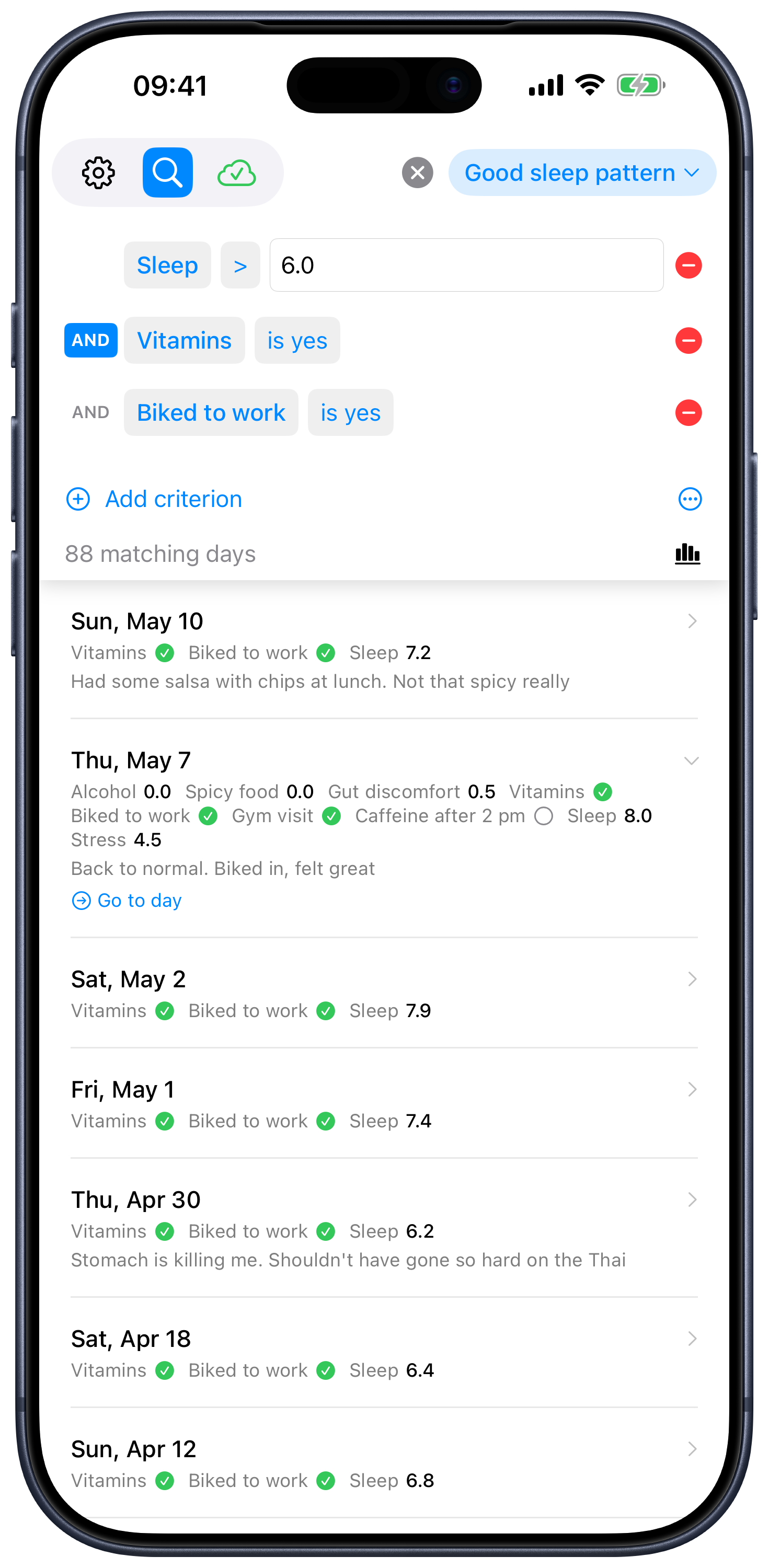
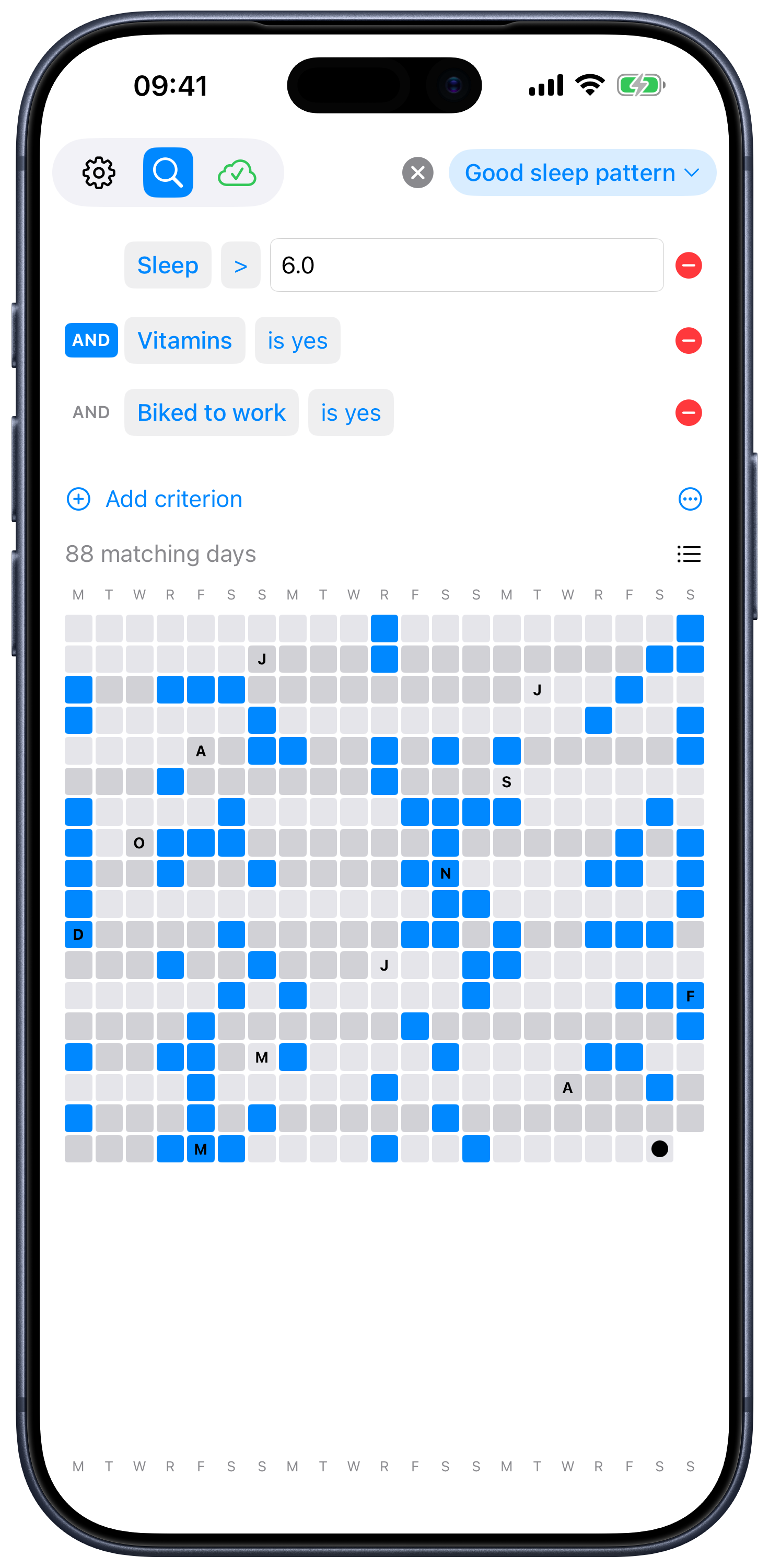
There are two ways to view the matching days, and a button in the search controls toggles between them:
- List — each matching day is a card showing the date, the variables that were set, and the day's note. Tap the card to expand it; tap Go to day to jump to that day on the main screen.
- Heat map — a calendar grid, scrolling from your earliest record to today. Matching days are colored, non-matching days are gray. Today has a small dot, and the start of each calendar month has the first letter of that month.
You can find the button to the right of the "X matching days" text right above the results.
Saved searches
Searches you'll come back to deserve a name. The right side of the header pill has a saved-searches menu — tap it.
- Save current… prompts for a name and saves whatever criteria you have set up.
- Any saved search by name loads that search instantly. The active one shows a checkmark.
- The ellipsis menu on the active saved search lets you rename or delete it.
If you change a saved search's criteria without saving, a small orange dot appears on the menu to remind you the active search is modified. Save again to update it.
Saved searches are stored alongside your data, so they sync to your other devices and are included in exports.
How matching works (the small print)
A few details that quietly do the right thing:
- Diacritics are folded. Searching for
cafematchescafé. The Germanßmatchesss(sostrassefindsstraße). - Case doesn't matter.
Headacheandheadacheare the same to search. - Number equality respects precision. If a variable has a precision of "1 decimal," a search for
= 1.4matches anything that displays as 1.4, even if the stored value is 1.42. (Internally, both sides are rounded to the variable's precision before comparing — see Precision.) - Dates compare cleanly. Date filters use calendar dates, not timestamps, so there's no time-zone or "off by an hour" weirdness.
Tips
- Build up complex queries one criterion at a time. The result list updates with every change so you can see the effect.
- Use
is setandis not setto find days you forgot to record a particular variable. - Pair
Date:day of weekwith another criterion to ask weekday-shaped questions, like "on Mondays, was I tired?" - Save searches you build into Reports — a saved search is one of the building blocks a report can include.