Daily Notes
Each day has its own free-form text note. Use it for anything that doesn't fit into a variable — what you ate, how you slept, what was unusual, what you'd like to remember in case you ever look back.
The note lives at the bottom of the main screen, below your variables.
Editing a note
The pencil icon on the right side of the header is your edit button. Tap it to make the note editable; the keyboard slides up and you can type freely. Tap Done on the keyboard, or tap anywhere outside the note, to dismiss the keyboard.
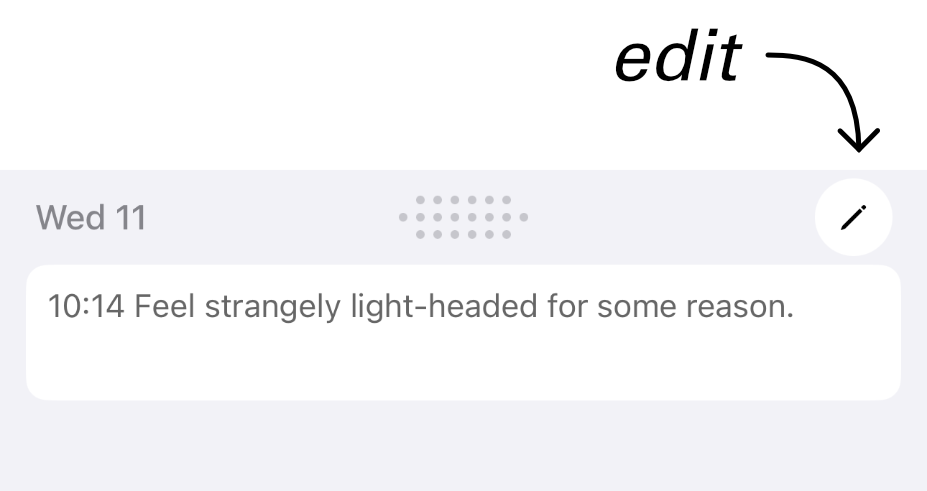
Notes can hold up to 512 characters per day. Your note is saved automatically as you type — if the keyboard is dismissed without "Done," your text is still safe.
Adding a timestamp
Sometimes you want to log when something happened, not just that it happened. Long-press the note button on the right side of the header to insert the current time at the end of the note - this works at any point, even in the middle of writing. The app gives a small haptic tap (a little vibration) to confirm.
The inserted timestamp looks like 08:42 on its own line. You can long-press the button several times throughout the day to build up an annotated timeline.
The read-only note card New in 2.7
Tapping the note area itself (anywhere on the note text, when you're not in edit mode) opens a clean, formatted, scrollable card showing the full day's note. Timestamps are styled distinctly so the day reads like a journal entry.
This is handy when a note has grown long and you just want to read it, not edit it. Tap anywhere on the card to dismiss it.
Notes on previous days
The note field works the same way on any day — navigate to a previous day and the note shown is that day's note. You can read or edit notes on any day at any time.